Set Up Your Tickets AI Agent
The AI Agent is designed to enhance your support workflow by automating routine tasks and delivering intelligent, context-aware responses. This guide walks you through configuring your Tickets agent for smooth integration and optimal results.
Step-by-Step Setup Instructions
Step 1: Access the Configurations Panel
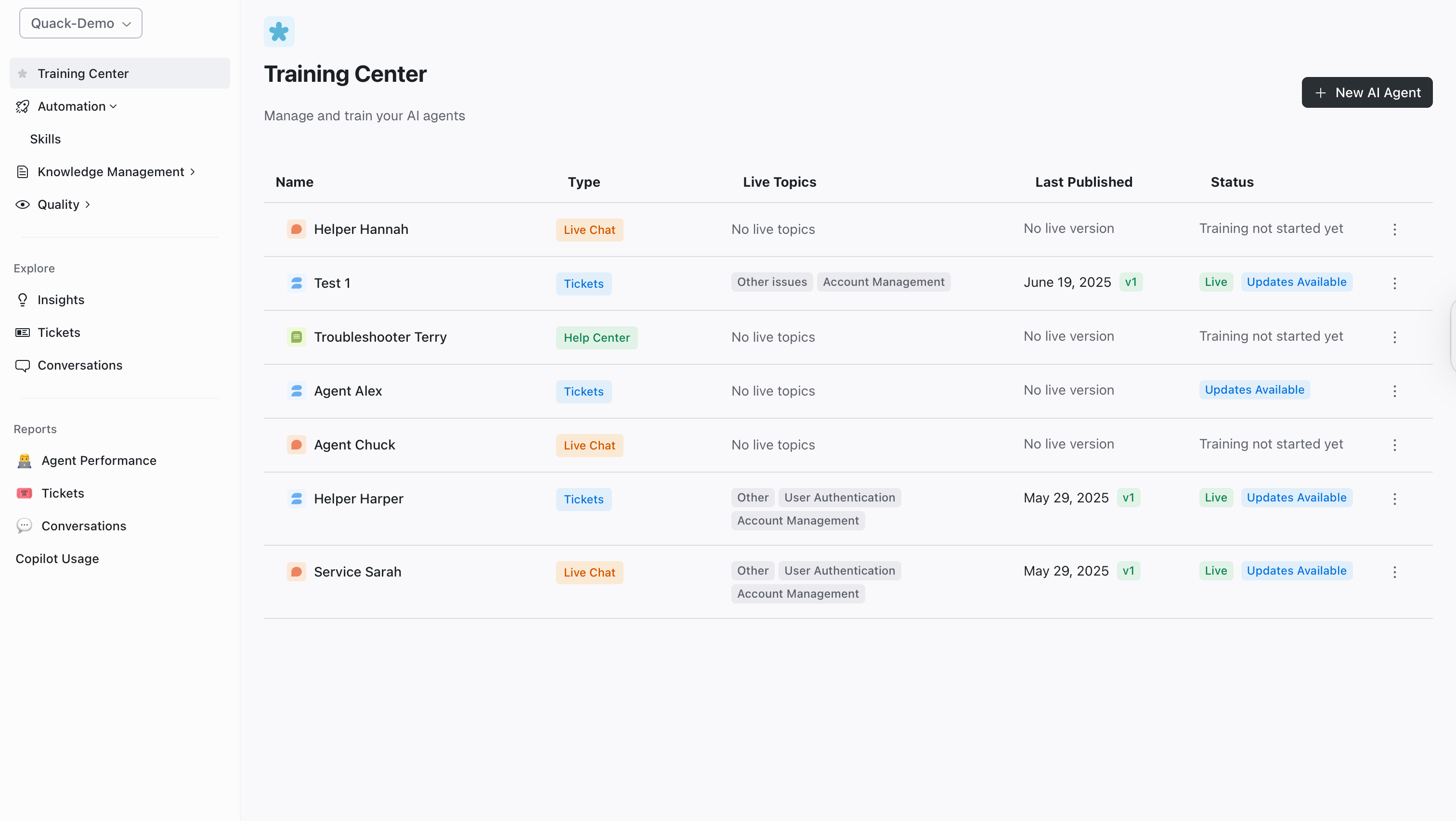
Go to the Training Center on the left menu
Click New AI Agent in the top right corner
Select the channel your Agent will handle
Once created, click on Configurations in the top right corner
Step 2: Set Up Data Sources
Under General, navigate to the Sources section
Click Add source
Choose your integration: select Zendesk Ticketing or another available source
Confirm that the source appears and is marked as Active
Step 3: Enable Helpful Links
Go to the Helpful Links section
Check Include helpful links to let your Agent include relevant support articles and resources
Step 4: Configure Style & Tone
In the Style & Tone section, choose one of the following:
Context-aware interactions (Recommended): matches the AI’s tone to your brand
Custom: Define a specific response tone and style
If using Custom:
Set the Tone of Voice from the dropdown
Define Chat Openers and Closers:
Click Add opening style: enter your preferred greeting
Click Add closing style: set a consistent closing line
Step 5: Define Escalations
Go to the Escalations tab under Configurations (Follow Step 1 to go to configurations)
Under Default assignee:
Choose a Specific agent to route escalations. Select the relevant group and/or person in the dropdowns
Select Unassigned if you don’t want Quack to change the assignee.
Return to Quack and select the new agent from the dropdown
Click Refresh list if the agent doesn’t appear immediately
Enable Strict Mode if you want to limit Quack to only answer questions it was trained on.
Using the Interaction limit, you can set the maximum number of user escalations before escalations. Choose a number or select Unlimited from the dropdown.
Step 6: Skills
If you have already created Skills, go to the Skills tab to release or deactivate them.
To do so:
Toggle ON the Skill to activate it
You can toggle it OFF at any time, no need to delete or recreate it.
💡Pro tip: For more information about skills, visit this article.
Step 7: Connect Quack to Zendesk
Go to the Install tab
Under Add Quack to Zendesk:
Under Create the agent, click Open Zendesk to launch the setup page
Create a new agent within Zendesk
Return to Quack and select the new agent from the dropdown
Click Refresh list if the agent doesn’t appear immediately
Next Steps
Once your setup is complete, test your new Agent in the Training center. There, you will be able to fine-tune the answers while you monitor performance.
Was this helpful?
Still need help? Share an idea