Setting Up Your Data Sources
Quack AI integrates seamlessly with your existing data infrastructure to deliver insights faster. Currently, data source integration is handled directly by our technical team.
To connect your data sources:
Contact your Customer Success Manager: Let them know which data sources you’d like to connect (e.g., Ticketing System, Knowledge & Docs, Task Management system).
Provide access details: Your CSM will guide you on securely sharing credentials or API tokens.
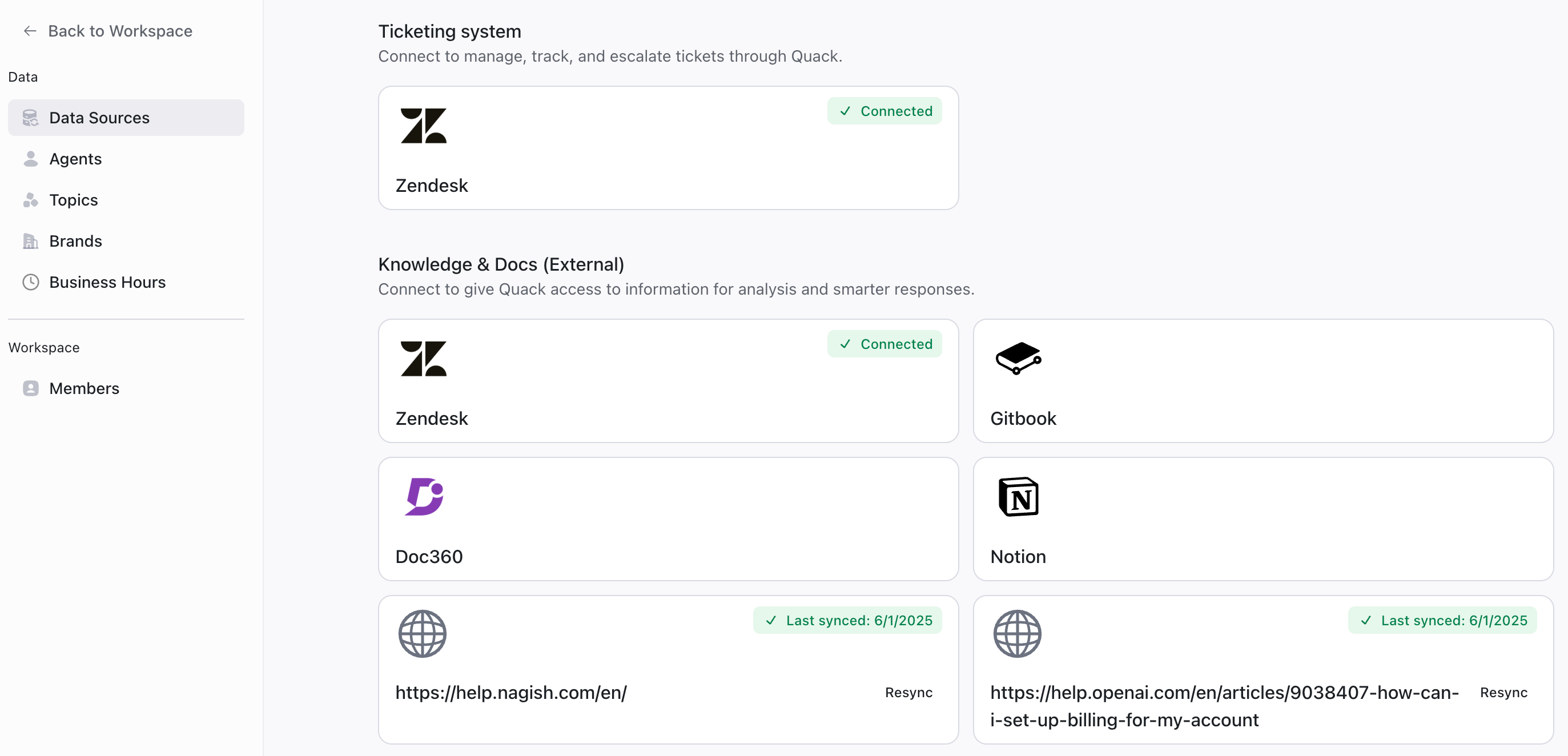
Confirm configuration: Once integration is complete, you’ll receive a confirmation and see your connected data sources in the Data Sources section of your Quack AI Dashboard:
💡 Pro Tip: You can prepare for integration by listing your most-used datasets and identifying which insights you’d like Quack AI to generate first.
Setting Up Data Sources Yourself
Follow this step-by-step guide to connect your data sources to Quack AI.
Step 1: Open Workspace Settings
From the top left of your dashboard, click your Workspace name.
Select Settings from the dropdown menu.
Step 2: Go to the Data Sources Tab
In Settings, click the Data Sources tab.
You’ll see available categories for connection:
Ticketing System
Connect your support platform so Quack can manage, track, and escalate tickets directly.
Sync behavior: Tickets are synced automatically once received.
Supported systems include:
Zendesk
Front
Kustomer
Intercom
Freshdesk
Salesforce
HubSpot
Knowledge & Docs (External)
Connect external knowledge bases like Notion or Confluence to give Quack access to content for smarter replies.
Supported systems include:
Notion
Confluence
Zendesk
Doc360
Gitbook
Sync behavior: Articles are synced every 12 hours.
You can also add knowledge from a URL or upload a file (PDF, DOCX, or Markdown) by clicking on Add Public Knowledge.
Internal Documentation
Connect internal repositories like Google Drive to enable Quack Copilot to analyze company-specific documents.
Supported systems include:
Gitbook
Notion
Google Drive
Doc360
Confluence
Sync behavior: Files are synced every 12 hours.
Task Management System
Link tools like Jira or Asana so Quack can understand tasks, issues, and workflows.
Using a different ticketing system? Reach out to your Customer Success Manager to check if we can support it.
💡 Pro Tip: Quack’s onboarding team connects your data sources for you before setup, but you can edit or add more anytime from the Data Sources tab.
Was this helpful?
Still need help? Share an idea